
TV Cast - Roku Remote & All
FlyMobileTools
3.8142.00 Reviews
- Version
- 1.30.9
- Installs
- 100.00K
- Age Rating
- Everyone
Screenshots
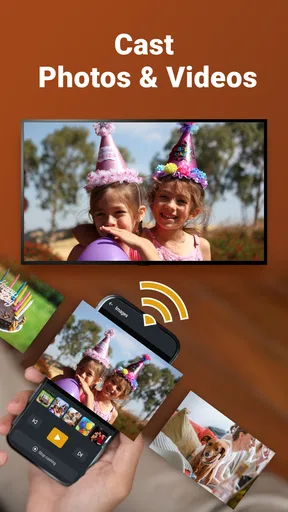
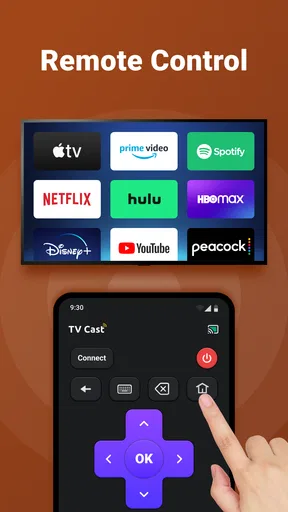
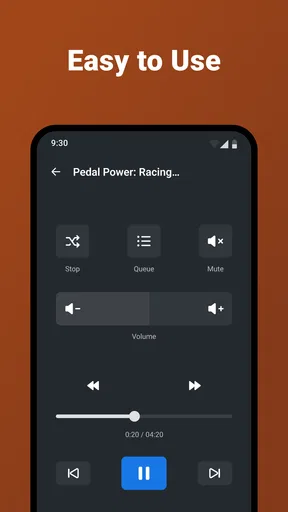
Our Review of TV Cast - Roku Remote & All
 Analysis by Appyee
I installed TV Cast - Roku Remote & All expecting a straightforward way to move photos and videos from my phone to a television, and that is the right way to understand it. This is a free tools app from FlyMobile that combines casting with a phone-based remote-control experience. It is aimed at the moment when the content is already on your phone but the larger screen is across the room.
That sounds simple, but the useful question is not whether casting exists. Most modern phones and televisions already offer some form of it. The better question is whether this app makes the complete trip—from choosing something on the phone, to getting it onto the TV, to controlling playback—less awkward. In my experience, it can be handy for casual household use, especially when the original television remote is missing or inconvenient. It is less convincing as a complete replacement for a dedicated manufacturer app or a built-in casting system.
From a phone full of media to a television on the wall
The starting condition is easy to recognize. I might have a family video, a holiday photo, or a clip saved locally on my phone, while everyone else is sitting in front of the television. Passing the phone around works for a few people, but it quickly becomes uncomfortable. A cast-and-remote app has a practical role here: keep the phone in the user’s hand while the group watches the larger display.
The app’s store summary focuses on casting photos and videos to TVs and using the phone as a universal remote. Those are two related jobs, but they are not identical. Casting is about transferring attention from the small screen to the big one. Remote control is about changing the viewing experience after the content appears. I found that separating those expectations makes the app easier to judge.
Before starting, I would check the basics that affect almost every phone-to-TV workflow. The phone and television need to be reachable on the same home network for discovery to work reliably, and the TV must be awake rather than sitting in a deep standby state. If the app cannot see the television, repeatedly tapping the cast button is unlikely to solve the underlying connection problem. Turning the TV on, opening its relevant input or home screen, and then reopening the app is a more sensible first move.
That preparation is not glamorous, but it is one of the app’s most important real-world lessons. A universal remote cannot rescue a television that is offline, and a casting tool cannot make an unavailable device appear. I would also keep the phone reasonably close to the router during the first connection. Once the handoff is established, the phone can return to normal use, but discovery is where many users will decide whether the app feels dependable.
Choosing content without making the room wait
Once the television is visible, the workflow becomes more natural. I would begin with a specific item rather than browsing aimlessly: one video to show the family, a small group of photos from a recent event, or a clip that is difficult to see on a phone. This matters because a cast session is most successful when the desired result is clear before the connection begins.
Photos are a particularly sensible use case. A phone gallery is usually the place where personal images are easiest to find, while the television is the place where several people can view them together. The app’s value is not that it creates new media; it reduces the distance between the private library on the phone and the shared screen in the room.
Videos introduce a different trade-off. A local video can be convenient because I already know where it is, but playback still depends on the receiving television and the quality of the connection between the devices. If the source file is unusual or the TV handles it poorly, the cast may be less smooth than expected. For a one-off clip, trying again is acceptable. For a long film or an important presentation, I would prefer a method I had already tested on that particular TV.
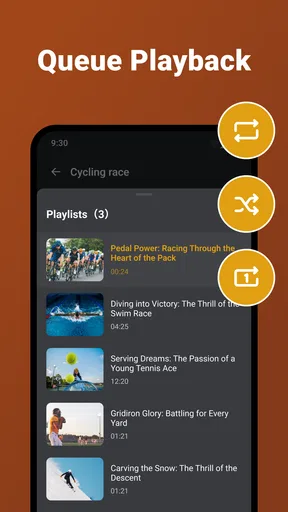
A useful habit is to prepare the queue before handing the phone to someone else. I would select the media, close unrelated apps that might interrupt the session, and keep the phone unlocked until the first image or video is clearly visible on the television. That avoids the familiar situation where everyone is waiting while the owner searches, reconnects, or explains what should happen next.
The handoff between phone, app, and TV
The most interesting part of this app is the handoff itself. The phone is the source and the control surface, while the television is the destination. The app sits between those two roles, which means a small problem at any point can feel like an app problem even when the real issue is the TV’s state or the home network.
I like the idea of having casting and remote functions in one place because it reduces the number of tools needed for a casual viewing session. If I have just sent a photo to the TV, it is convenient to remain in the same app when I need to navigate, pause, or move through the viewing experience. That is more practical than switching between a gallery, a casting menu, and a separate remote application.
There is also a social advantage. The person holding the phone can act as the session’s operator without standing up to find the physical remote. In a family setting, that can make the experience calmer. One person chooses the content, another can suggest what comes next, and the television remains the shared endpoint rather than becoming another personal screen.
At the same time, a phone is not automatically a perfect remote. It has no physical buttons, no tactile feedback, and no guarantee that the control layout will feel identical to the television’s original handset. When I am looking down at the phone, I may lose awareness of what is happening on the TV. For quick navigation this is fine; for frequent channel changes or detailed settings, a physical remote can still be faster.
This is where the app’s universal-remote promise needs a practical interpretation. It is useful when the phone is already in my hand and I need basic control. It is not necessarily the best answer for every television task, particularly if I need deep system menus, model-specific shortcuts, or a control experience tailored by the TV manufacturer.
A realistic evening workflow
Imagine returning from a weekend trip with a phone full of photos. Friends are visiting, and I want to show only a few highlights rather than passing the phone around. I open the app, make sure the television is ready, look for the available TV, and start with one image. After confirming that the picture appears correctly, I continue through the selected memories while keeping the phone available for navigation.
The important detail is the confirmation step. I would not select dozens of images and assume the whole session is working. Sending one photo first exposes connection issues early and lets me check whether the TV is displaying the right orientation and scale. If that first handoff succeeds, continuing is less stressful. If it fails, I have lost only a moment rather than creating a long queue that nobody can see.
For a video, I would use the same approach: test the first clip, watch for a stable start, and only then move to the next item. If the television does not respond, I would stop the session, check the network connection on both devices, and restart discovery. That is more efficient than repeatedly pressing controls while the app is still trying to establish contact.
This workflow also shows who benefits most. The app suits people who regularly keep shareable media on their phone and want a simple bridge to a compatible television. It can help in guest rooms, living rooms, or homes where the original remote is misplaced. It is especially approachable for occasional use because the goal is visible: get personal media onto the big screen and control the session from the phone.
What the result feels like
When the connection works, the outcome is pleasantly direct. My phone becomes the selection and control device, while the TV becomes the viewing surface. That division is more comfortable than asking several people to crowd around a small display, and it makes personal photos feel more suitable for a group.
The app is also free to install, which lowers the barrier to trying it. It carries an Everyone content rating, so its intended audience is broad. FlyMobile has released it as a tools app rather than a media library or entertainment service, and that distinction is useful: I would approach it as a utility for a particular household task, not as an all-purpose replacement for every TV feature.
Its current version is 1.30.9 and it supports devices running Android 7.0 or later. That makes the minimum operating-system requirement relatively approachable for people using older Android phones, although compatibility with the television remains just as important as compatibility with the phone. A supported phone alone does not guarantee that every TV model will offer the same experience.
The app has passed the early adoption stage, with over 100 thousand installs. Its average rating is 3.8 from around 700 ratings, which matches my balanced impression: there is a useful idea here, but the experience depends heavily on the connection and on what the user expects from a “universal” remote. The rating does not make it an automatic recommendation, but it does suggest that prospective users should approach it as a practical utility with some setup friction.
Where the flow breaks
The first weak point is device discovery. If the TV does not appear, the user may not know whether to blame the app, the network, the television, or the phone. A clear connection flow is valuable, but no casting app can remove every variation in home-network configuration. I would skip this type of tool if I need guaranteed operation in a busy office, hotel, or shared network where I cannot control the setup.
The second weak point is the difference between basic control and complete control. A universal remote can be convenient for everyday actions, yet it may not match the exact behavior of a manufacturer’s own app. If my main goal is changing advanced picture settings, managing accounts, or accessing model-specific functions, the official remote application is probably the better choice.
The third issue is the cost boundary. The app is free, but it includes in-app purchases ranging from $4.99 to $19.99 per item. That means I would inspect the available options before treating it as a permanently free replacement for hardware or an official TV utility. For someone who only wants to test a single casting session, the free entry point is attractive. For someone who expects every remote function without additional spending, the purchase structure deserves attention.
I would also avoid relying on it as the only method for an important event until I had tested the exact phone-and-TV combination. A birthday slideshow, work presentation, or holiday gathering is not the right moment to discover that a particular video format, network arrangement, or television interface behaves differently from expected. Testing one photo and one video beforehand is a small step that can prevent a much larger interruption.
Who should use it, and who should choose something else
I would recommend giving it a try if your main need is occasional TV casting from a phone, especially for personal photos and videos, and you like the convenience of keeping remote controls in the same app. It is a reasonable fit for households that often misplace the physical remote or want to share phone-based memories without passing the device around.
I would be more cautious if you already have a reliable built-in casting option or a polished official app for your television. Those alternatives may offer tighter model-specific integration and fewer questions about compatibility. Likewise, people who mainly stream from services already designed for TV playback may find that opening the service’s own TV app is simpler than adding another handoff through a third-party tool.
The app is not the right choice for users who expect a fully tactile remote, professional presentation reliability, or complete access to every television setting. It is also a poor fit if the media is stored somewhere the app cannot conveniently reach, because the central advantage comes from bridging the phone’s own photos and videos with the larger display.
My final take after following the whole process
TV Cast - Roku Remote & All makes the most sense when I judge it as a bridge rather than a miracle solution. The bridge starts with media on the phone, crosses a home-network connection, hands control to the television, and ends with a shared viewing experience. Each step is understandable, but each step also has its own possible failure.
I appreciate the combined approach. Having casting and remote control together can make a casual evening easier, and the free download gives people a low-risk way to see whether it fits their setup. The strongest use case is clear and realistic: choose a photo or video on the phone, send it to the TV, and keep control without searching for the original remote.
My recommendation is therefore conditional but positive. Try it for home use, test the connection with a single item first, and keep the official TV app or physical remote available if you need advanced control. If that workflow matches your habits, FlyMobile’s tool can remove a surprisingly annoying bit of friction. If you need flawless compatibility, deep television settings, or a guaranteed presentation setup, a manufacturer-specific solution remains the safer choice.
Verdict
Strengths of TV Cast - Roku Remote & All
- Works with most Roku devices on the same Wi‑Fi network.
- Simple controls make navigation quick for everyday viewing.
- Keyboard input can speed up searches compared with the Roku remote.
- Casting photos and videos from a phone is convenient for sharing.
- Useful backup when the physical Roku remote is lost or unavailable.
Limitations of TV Cast - Roku Remote & All
- Requires a stable Wi‑Fi connection to detect and control the Roku device.
- Some advanced features may require a paid subscription.
- Ads can interrupt the experience in the free version.
- Compatibility may vary across older Roku models and network setups.
- Phone battery usage increases during extended streaming or remote sessions.
Similar Picks in This Category
View All
Google LLC4.0

Gboard - the Google Keyboard
Google LLC4.5

Google Play services
Google LLC4.3

Google Play Store
Google LLC4.9

Files by Google
Google LLC4.5

SHAREit: Transfer, Share Files
Smart Media4U Technology Pte.Ltd.4.3
Frequently Asked Questions
What is TV Cast - Roku Remote & All, and what can it do?
TV Cast - Roku Remote & All is a mobile companion app designed to help you control compatible Roku devices and cast selected media from your phone to a television. During testing, its main functions included remote-style navigation, playback controls, volume or power shortcuts on supported setups, and screen or media casting features. The exact tools available may depend on your Roku model, phone, network, and the permissions granted to the app.
How do I connect the app to my Roku TV or streaming player?
To connect, your smartphone and Roku television or streaming player generally need to be connected to the same Wi-Fi network. After opening the app, allow it to search for nearby devices, then select the Roku device you want to use. If it does not appear, check that both devices are on the same network, disable mobile data temporarily, restart the app, and confirm that your router is not isolating connected devices.
Can I cast videos, photos, or music from my phone to Roku?
The app may let you cast supported photos, videos, music, web content, or compatible online media, but casting performance depends on the file type, the source website, your Roku model, and the app’s current compatibility. Some services restrict third-party casting or require their official application. In testing-style use, playback can also be affected by Wi-Fi speed, advertising, buffering, and whether the content is stored locally or streamed from the internet.
Does TV Cast - Roku Remote & All work with every Roku device and smartphone?
Compatibility is not guaranteed for every Roku product or mobile device. The app is intended for supported Roku televisions, streaming sticks, and players, while Android and iOS requirements may vary according to the version installed. Older Roku hardware, outdated operating systems, guest networks, VPN connections, or manufacturer-specific restrictions can prevent discovery or limit certain controls. Check the store listing and your device requirements before downloading.
Is TV Cast - Roku Remote & All free to use, and are there privacy or subscription concerns?
The app may be available to download without an upfront charge, but some features can be limited by advertising, in-app purchases, or a premium subscription. Review the payment screen carefully before starting any trial, especially the renewal terms. Because the app can require access to the local network and media-related permissions, users should also read its current privacy policy and grant only the permissions needed for remote control or casting.
